The Bitwig-to-Godot Audio Pipeline That Actually Works
Bitwig Studio and Godot make a natural pairing for game audio, and most of the sound in a Godot project can start life in a DAW. I reach for Bitwig — its clip launcher and modulation system map beautifully onto how game audio actually behaves — but here's the thing worth saying up front: almost nothing in this pipeline is Bitwig-specific. The formats, the loudness targets, the loop conventions, the bus layout — all of it transfers cleanly to Ableton, Reaper, FL Studio, Logic, or whatever you already know. The DAW is where you make the sound; Godot only cares about the files that come out.
So treat every "in Bitwig" below as "in your DAW." Here's a pipeline that holds together.
The 30-second version
- OGG Vorbis for music and long ambiences, WAV for short SFX. Godot loves both; the split is about memory vs. quality.
- Render at 44.1 kHz, 16-bit. Match one project-wide sample rate and never resample on the fly.
- Leave headroom — master to about -6 dBFS peak / -16 LUFS. Godot's buses, reverb, and 3D attenuation all add gain on top.
- Author seamless loops in the DAW, then set the loop mode at import. A click at the loop point is almost always a render-tail problem, not a Godot problem.
- Export stems, not just a stereo bounce, if you want adaptive/layered music. This is the single highest-leverage habit.
- Mirror your DAW mixer as a Godot bus layout (Master → Music / SFX / Ambience → sends). Set it up once, reuse it everywhere.
Why the DAW doesn't matter (and why that's the point)
Godot imports plain audio files — .ogg and .wav. It has no idea whether they came from Bitwig, Reaper, or a field recorder. That's genuinely freeing: there's no proprietary session format to import, no plugin that breaks on the next engine update, no per-seat licensing math when a client's team grows. When your DAW updates, the pipeline keeps working, because the contract between the two tools is just "a correctly rendered audio file."
The practical upside: a client can be handed a folder of rendered stems and a Godot project and own the integration forever, regardless of which DAW their next composer prefers. That portability is the whole reason to keep the handoff boring and file-based.
Two formats: .ogg vs .wav
Godot 4 gives you two audio stream types that matter in practice.
OGG Vorbis (AudioStreamOggVorbis). Compressed, small on disk and in RAM, decoded on the fly. This is your default for music, long ambience beds, and dialogue — anything measured in tens of seconds or minutes. A three-minute track is a few megabytes instead of thirty.
WAV (AudioStreamWAV). Uncompressed PCM, loaded into memory, zero decode latency. Use it for short, frequently-triggered SFX — footsteps, gunshots, UI clicks — where you want the sound to fire instantly and don't want dozens of simultaneous decoders running.
A good rule: if it's short and fires often, WAV; if it's long and plays occasionally, OGG. Godot can also import WAV with IMA-ADPCM compression if a project is memory-constrained, but for most desktop and console targets the uncompressed-WAV-for-SFX split is the sane default.
Sample rate and loudness: the boring stuff that bites
This is the audio equivalent of "apply your transforms" — unglamorous, and the source of most last-minute problems.
- Pick one sample rate and render everything to it. 44.1 kHz is the safe, universal choice; 48 kHz is fine if your whole project commits to it. Mixing rates means Godot (or the OS mixer) resamples at runtime, which costs CPU and can subtly color the sound. Set your DAW's project rate to match and never deviate per-file.
- 16-bit is plenty for shipped assets. Work in 24- or 32-bit float inside the DAW, absolutely — but render final game assets to 16-bit. The extra bits buy you nothing after the sound is baked.
- Leave headroom on the master. Aim for roughly -6 dBFS true peak and around -16 LUFS integrated for music. Godot stacks gain on top of your file: the bus volume, 3D distance attenuation curves, and reverb/effect buses can all push a hot master into clipping. A file that's already slammed to 0 dB has nowhere to go. Mix quieter than feels right and let the engine bring it up.
- Normalize deliberately, not reflexively. Peak-normalizing every SFX to 0 dB destroys the relative dynamics between sounds. Balance the set by ear (or to a rough LUFS target), then export.
None of this is Bitwig-specific — Ableton's "Render to Disk," Reaper's render dialog, and Logic's bounce all expose the same sample-rate, bit-depth, and normalization controls. The targets are what matter, not the menu.
Seamless loops: authored in the DAW, flagged at import
The most common "Godot audio bug" isn't a Godot bug — it's a loop that was never seamless to begin with. Fix it at the source, then tell Godot how to play it.
Author the loop in your DAW so the tail and the head line up: no reverb or delay bleeding past the loop boundary (either commit the tail inside the loop region or render a version whose ambience wraps), and a render region placed exactly on musical bar lines. Bitwig's loop markers, Ableton's loop brace, and Reaper's time-selection render all do the same job — export only the region that should repeat.
Then set the loop at import time in Godot. For OGG music, select the file in the FileSystem dock and enable looping in the Import dock (with a loop offset if you want a one-shot intro before the loop point). For WAV, AudioStreamWAV exposes a loop mode (forward, ping-pong, or disabled) plus loop begin/end sample positions:
# Configure a WAV loop in code (or set the same fields in the Import dock)
var stream: AudioStreamWAV = preload("res://audio/sfx/engine_idle.wav")
stream.loop_mode = AudioStreamWAV.LOOP_FORWARD
stream.loop_begin = 0
stream.loop_end = -1  # -1 = end of sample
If you hear a click at the seam, 95% of the time the render tail is the culprit — re-export the region, don't reach for a crossfade hack in-engine.
Stems for adaptive music: the highest-leverage habit
A single stereo bounce gives you a track that plays start to finish. Stems — the drums, bass, pads, and lead rendered as separate synchronized files — give you music that responds to the game. This is where a DAW's structure pays off, and it's worth building in from the first session.
Bitwig makes this especially natural: its clip launcher is essentially an adaptive-music sketchpad, and every track exports as its own stem aligned to the same timeline. But the concept is universal — Ableton's Session view, Reaper's render matrix (render each track/stem in one pass), and Logic's track stems all produce the same deliverable: N files, identical length, sample-aligned.
In Godot, play the stems on synchronized AudioStreamPlayers and fade layers in and out as intensity changes:
# Layered music: all stems start together, volumes drive the mix
@onready var layers := {
    "drums": $Drums,
    "bass":  $Bass,
    "lead":  $Lead,
}

func _ready() -> void:
    for p in layers.values():
        p.play()  # started on the same frame -> sample-aligned

func set_intensity(level: int) -> void:
    _fade(layers["bass"], level >= 1)
    _fade(layers["lead"], level >= 2)

func _fade(player: AudioStreamPlayer, on: bool) -> void:
    var target := 0.0 if on else -80.0
    create_tween().tween_property(player, "volume_db", target, 1.5)
For sample-accurate interactive music, Godot 4 also has AudioStreamInteractive (clip-based transitions with configurable sync) and AudioStreamSynchronized (play multiple streams locked together) — both of which expect exactly the kind of clean, equal-length stems a DAW exports.
A bus layout that mirrors your mixer
Don't rebuild your mix from scratch in the engine. Recreate your DAW's bus structure as a Godot Audio Bus Layout (the panel at the bottom of the editor), so the mental model carries straight over:
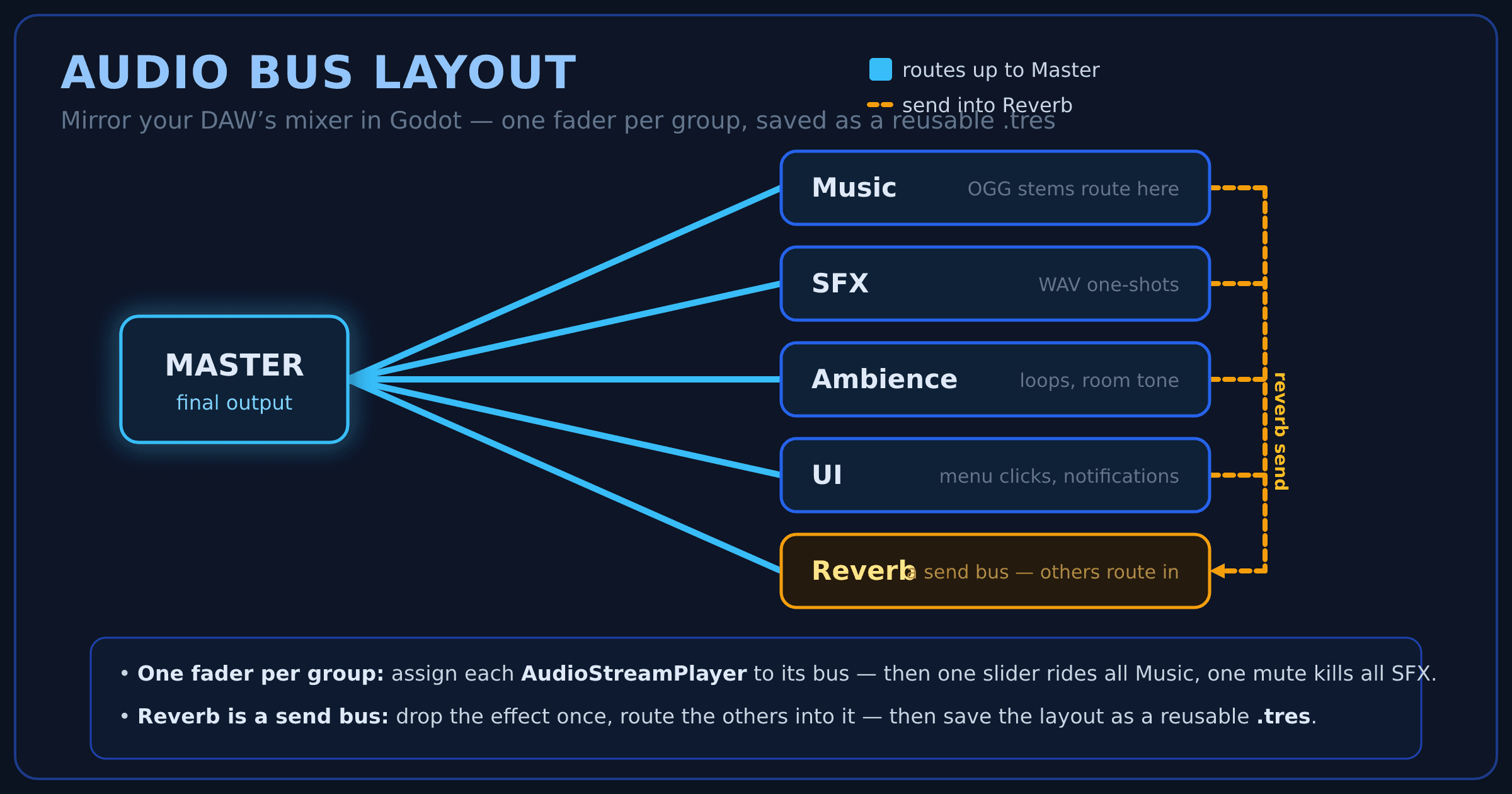
Assign each AudioStreamPlayer to the matching bus via its Bus property, and now a single fader controls all music, one mute kills all SFX, and an effect dropped on Reverb processes everything sent to it — the same moves you'd make on your DAW's mixer. Save it as a .tres bus layout and reuse it across projects.
The re-render loop, without pain
The golden rule mirrors the modeling side of the house: keep the DAW as the single source of truth, and make the engine consume rendered files. When a cue needs a change, change it in the session, re-render the same region to the same filename, and Godot hot-reimports on window focus — the loop is fast enough to audition a mix change against live gameplay instead of guessing in the arranger.
Two habits keep that loop painless:
- Stable filenames and paths. Re-render over the existing file so every
preloadand bus assignment in Godot still points at it. Renaming means re-wiring. - A consistent render region. Always bounce the same bar range so loop points and stem lengths stay identical across re-renders — otherwise your synchronized stems drift out of alignment.
The takeaway
Bitwig and Godot 4 are a genuinely production-ready pairing for game audio — but so are Ableton, Reaper, and Logic, because the smoothness comes from discipline at the file level, not from any one DAW: the right format per sound, one sample rate, honest headroom, loops authored at the source, stems for anything adaptive, and a bus layout that mirrors your mixer. Set those conventions on day one and the pipeline disappears into the background — which, whatever DAW you compose in, is exactly what a pipeline should do.
Building something in Godot and need a game-audio pipeline that won't fight your composer — whatever DAW they use? That's exactly the kind of thing Codebycandle helps with — get in touch.
Corrections, suggestions, and topic ideas are always welcome — send them along.